Trigger on data events
Get alerted when your robot’s data meets a condition. Triggers send webhooks or email notifications when events occur on a machine, so you can respond to temperature spikes, low battery, detection results, or connectivity changes without polling.
Triggers are configured in the machine’s config and are scoped to that machine. Each trigger fires when its event occurs on the specific machine it is configured on.
Trigger types
Viam supports five trigger types:
| Type | Event JSON value | Fires when |
|---|---|---|
| Data synced | part_data_ingested | Any data syncs from the machine to the cloud. |
| Conditional data ingestion | conditional_data_ingested | Synced data meets a specified condition (key, operator, value). |
| Part online | part_online | The machine part comes online. |
| Part offline | part_offline | The machine part goes offline. |
| Conditional logs ingestion | conditional_logs_ingested | Machine logs contain errors, warnings, or info messages (checked hourly). |
For the full attribute reference for all trigger types, see Trigger configuration.
Configure a trigger
Go to the CONFIGURE tab of your machine. Click the + (Create) button in the left side menu and select Trigger.
Enter a name and click Create.
In the Type dropdown, choose one of the following event types:
Data has been synced to the cloud: Whenever your machine syncs data of any of the specified data types, the trigger fires. Then select the data types for which the trigger should send requests.
Conditional data ingestion: Whenever your machine syncs data that meets certain criteria, the trigger fires.
Choose the target component and method for your condition.
Add a condition: specify a key in the synced data, an operator, and a value. When data from the target component and method syncs from your machine, the trigger uses the key as a path to look up a value in the synced data object. The trigger applies the operator to the extracted value and the value you specified in your condition.
For example, the following trigger sends an alert when the
cpu-monitorcomponent’sReadingsmethod syncscpuusage greater than50: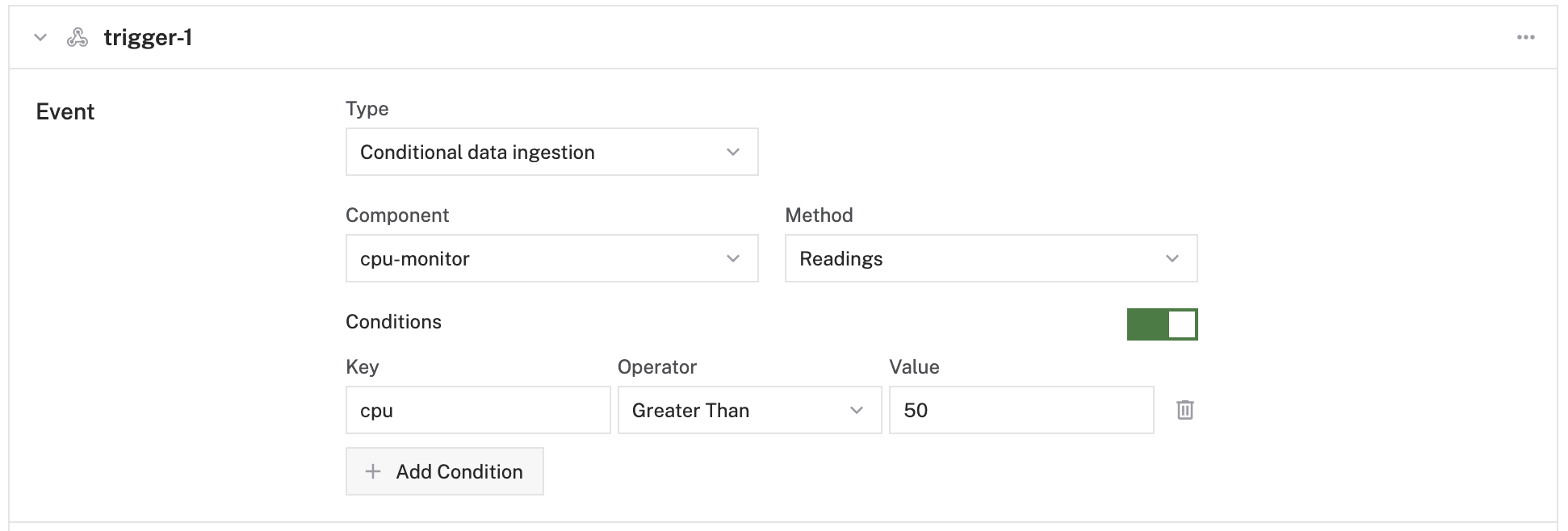
To see the data your components are returning, use each component’s TEST panel.
For a full reference of trigger configuration attributes, see Trigger configuration.
Next, configure what should happen when an event occurs. You can add Webhooks and Email notifications:
To add a webhook:
- Click Add Webhook.
- Add the URL of your cloud function.
- Configure the time between notifications.
- Write your cloud function to process the webhook payload. Use your cloud function to process data or interact with external APIs, such as Twilio, PagerDuty, or Zapier.
To add an email notification for specific email addresses:
- Toggle Email specific addresses on and add the email addresses you wish to be notified whenever this trigger fires.
- Set the alert frequency (minimum time between notifications).
To add an email notification for all machine owners:
- Toggle Email all machine owners on.
- Set the alert frequency (minimum time between notifications).

The following JSON configuration shows how to set up a trigger that fires when any data is synced to the cloud:
{
  "components": [
    {
      "name": "local",
      "model": "pi",
      "api": "rdk:component:board",
      "attributes": {},
      "depends_on": []
    },
    {
      "name": "my_temp_sensor",
      "model": "bme280",
      "api": "rdk:component:sensor",
      "attributes": {},
      "depends_on": [],
      "service_configs": [
        {
          "type": "data_manager",
          "attributes": {
            "capture_methods": [
              {
                "method": "Readings",
                "additional_params": {},
                "capture_frequency_hz": 0.017
              }
            ]
          }
        }
      ]
    }
  ],
  "triggers": [
    {
      "name": "trigger-1",
      "event": {
        "type": "part_data_ingested",
        "data_ingested": {
          "data_types": ["binary", "tabular", "file", "unspecified"]
        }
      },
      "notifications": [
        {
          "type": "webhook",
          "value": "https://1abcde2ab3cd4efg5abcdefgh10zyxwv.lambda-url.us-east-1.on.aws",
          "seconds_between_notifications": 60
        },
        {
          "type": "email",
          "value": "test@viam.com",
          "seconds_between_notifications": 60
        }
      ]
    }
  ]
}
For more information about triggers, see Trigger Configuration.
Webhook payload
When a trigger fires and sends a webhook, the HTTP request includes identifying headers (Org-Id, Location-Id, Part-Id, Robot-Id) and a JSON body with details about the event. For data triggers (part_data_ingested, conditional_data_ingested), the body includes the component name, method, timestamps, and the ingested data. For status triggers (part_online, part_offline), the request is a GET with metadata in headers only.
For the full header and body reference, see Webhook attributes. For example cloud functions that process the payload, see Example cloud function.
Notification frequency
The seconds_between_notifications field sets the minimum time between notifications for the same trigger. If a trigger fires more frequently than this interval, additional notifications are suppressed until the interval has elapsed. To avoid floods of notifications, set the interval to a value appropriate for your use case (for example, 3600 to allow at most one alert per hour). For conditional_logs_ingested triggers, the check interval is always one hour regardless of this setting.
Machine telemetry triggers
The Part online, Part offline, and Conditional logs ingestion triggers are primarily used for machine health monitoring rather than data analysis. For step-by-step setup of these trigger types, see Alert on machine telemetry.
For the full attribute reference for all trigger types, see Trigger configuration.
Was this page helpful?
Glad to hear it! If you have any other feedback please let us know:
We're sorry about that. To help us improve, please tell us what we can do better:
Thank you!